
 I’m always looking for new ways to combine data and visualisation techniques. Partly I’m inspired by the likes of the DigitalUrban blog but mostly I’ve always liked mucking about with 3D software and real world data (3D Construction kit for the C64 anyone?).
So here is what you need for what I’m about to do, there’s a lot of different ways of achieving the same thing and at different costs. Inevitably if you have lots of money the steps are more streamlined.
- ArcGIS or QGIS for creating and exporting your GIS data to …
- SketchUp Pro (to export as FBX files) or SketchUp Free (plus the OBJ importer/exporter and AutoDesk FBX convertor)
- CityEngine (no free alternative for this as far as I am aware but there’s educational licensing)
- Unity (I’m using the free version but Pro works as well!)
- Unity Web player (for running around your model in a web browser)
Okay this will be a very quick run down as I’m not going to go into the details. I suggest you familiarise yourself with each piece of software paying attention to the import export functionalities of each.
This guide, as the blog is in general, primarily a notebook of workflows for myself so I don’t have to remember them all!
Recommended reading? Digital Urban and this “Google SketchUp for Game Design: Beginner’s Guide”
- Create City Streets or download from OpenStreetMap
- Edit data in ArcGIS or QGIS (and save as shapefile) or even use SketchUp pro and export as dxf
- Import data (edited in ArcGIS/QGIS or otherwise…) into CityEngine shapefiles/DXF/GDB/OSM/DAE/OBJ *or you can import OSM data directly*
- Generate your city using various ‘assets’, for example, city streets and plots from a GIS or straight from Open Street Map data. Using rules you can create your own building models as well.
- Once complete export your city model to a FBX format, in CityEngine FBX export dialog box I change the Misc Options Global Offset and click the ‘Center‘ button
 You can also create more more models (signs, trees etc) that can be placed in Unity separately. In SketchUp Pro its just a case of exporting as an FBX file, but if you have SketchUp Free use the OBJ exporter and AutoDesks free FBX converter.
- Either you have exported the city model to the correct Asset folder for your Unity project or you can click on the Assets menu in Unity and select Import New Asset

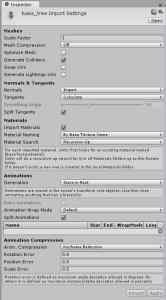
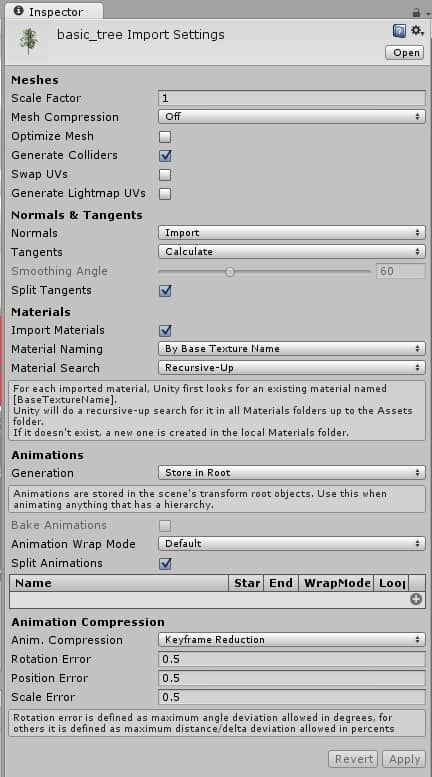
- In Unity select your newly imported model and using the Inspector window change the scale factor to 1 select Generate Colliders and Import Materials choosing the right Material Naming and Material Search options. The click apply and wait while your model is prepared.
- Once complete drag your model from the Project window into the Scene window and position. Now drag from the Standard Assets–>Character Controllers folder drag and drop the ‘First Person Controller’ onto your model.

- Add a light by selecting the menu GameObject–>Create Other –> Directional Light and then position it in over your model in the Scene window. If you can’t find it double click on the Directional Light heading in the Hierarchy window.

- Add a SkyBox (yes with nice fluffy clouds) by selecting the Edit–>Render Settings menu heading and clickin the little circle to the right of the SkyBox Material heading in the Inspector. In the Select Material dialog box type ‘sky’ and a list of the skyboxes will appear. Select one of these.


- To create a standalone playable demo of your model first make sure it all works click the play button, if you fall off your model press the play button again to stop and make sure the First Person Controller is placed above your model and that you selected the create colliders on your imported model in the Inspector window.

- Select File Build Settings, click “Add Current” to build the scene you are working on. Now click on Web Player (or PC and Mac Standalone) and click Build and Run

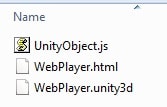
- Navigate to the folder where the HTML file has been created an double click on it, if you have installed the Unity Web Player your model walkthrough should load up just as if you had pressed play within Unity itself..






very concise, easy to understand walkthrough that got me started on my unity project. thanks so much!
Hi,
i would like to create realistic 3D buildings with objects of my college campus with GIS.
could you please explain how should i create my 3D models and import in to GIS software and make its as a web based interface.
I’m afraid that to give you instructions on this would be a whole new blog post, which I haven’t time for! I would however start by getting building footprints and using CityEngine to build 3D block models of your campus, then export from CityEngine to a webscene and host on ArcGIS Online.
Thanks for this guide! Do you know if it’s possible to create choropleth maps using Unity? I managed to export shapefiles to fbx and import that into Unity, but it seems to lose attribute info and polygon areas. Not sure if that’s the right format to import it?
You would need to make your Choropleth maps in a GIS program like ArcGIS or QGIS. Unity could then take that analysis as a model to view in the game environment. I’m sure there are ways of viewing that data (areas etc..) but I’m not aware of the method, sorry!
Is Sketchup Pro an alternative to Cityengine and worthy of investigation. I tried CE and hated it, found it really slow and very difficult to navigate
SketchUp Pro and CityEngine are not comparable products. CityEngine is first and foremost a procedural modeller ready to make your 2D GIS data 3D, SketchUp Pro is more a 3D CAD tool. Whilst both can do similar things really CityEngine is there to produce massive city models and SketchUp should be used to produce the geo-typical elements (lampposts etc…). Yes the learning curve for CityEngine is steep 🙂
Hi thanks for the tutorial, quick question, were you able to use this method to convert DEM’s into a Unity suitable format? Or was it just vector data?
Something like this : Digital Elevation Models – OS OpenData to SketchUp??
Hello,
do you know if I can extract a map of a city that I have created in Unity? For example if I navigate myself in the virtual city can I have a map for showing my location in the virtual city?
Thank you in advance,
Katerina
Hi and thanks for reading the blog! This was a post I did a while back, from memory I think you don’t have to create a map but just have a secondary camera view which is top down on your environment. Does that make sense? If you have more question like this maybe you would like to register at our new forums called 3DPathFinder.uk we have a specific forum for Unity (although you would be the first to post there!).
All the best
Elliot
Comments are closed.